



How to Create an Urdu PDF Without Broken Letters or Wrong Text Direction
An Urdu notice can look correct while you type, then change when you export it. Letters may turn into boxes, an English reference may move, or a paragraph may start on the wrong side of the page. These symptoms have different causes, so changing the font or repeatedly adding spaces is not always the right fix.
Start with readable Unicode Urdu text, choose the correct document direction, and check the actual PDF. The Urdu Text to PDF tool provides a text editor, RTL controls, and page settings for this workflow.
This guide uses a short fictional notice you can download and reproduce. It does not require a real letter, personal information, or an existing PDF.
Start with a small Urdu notice
Download the sample Urdu text. It includes ordinary Urdu sentences, a date, an English reference, a website address, and an email address. The event mentioned in it is fictional.
Two lines from the sample are:
اطلاع برائے مطالعہ
یہ ایک فرضی نمونہ ہے۔ براہ کرم عنوان، الفاظ اور اعداد کی ترتیب دیکھیں۔
The reference RC-2026-015 and address [email protected] give you something precise to inspect after export. Do not check only the heading: mixed-script details often reveal problems that an Urdu-only title does not.
You can compare your result with the sample Urdu PDF. It was exported from the tool using A4, portrait orientation, 20 mm margins, and RTL direction, with the first line formatted as a heading.
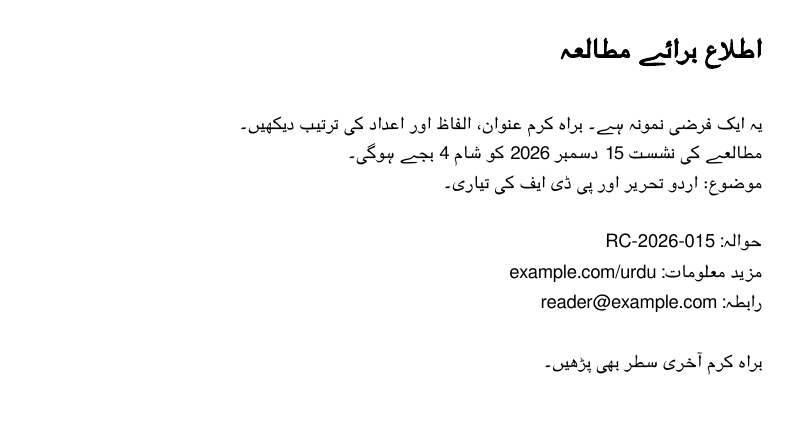
This is a crop of the sample PDF. Download the complete file to inspect the page layout and selectable text.
1. Load text that is already readable
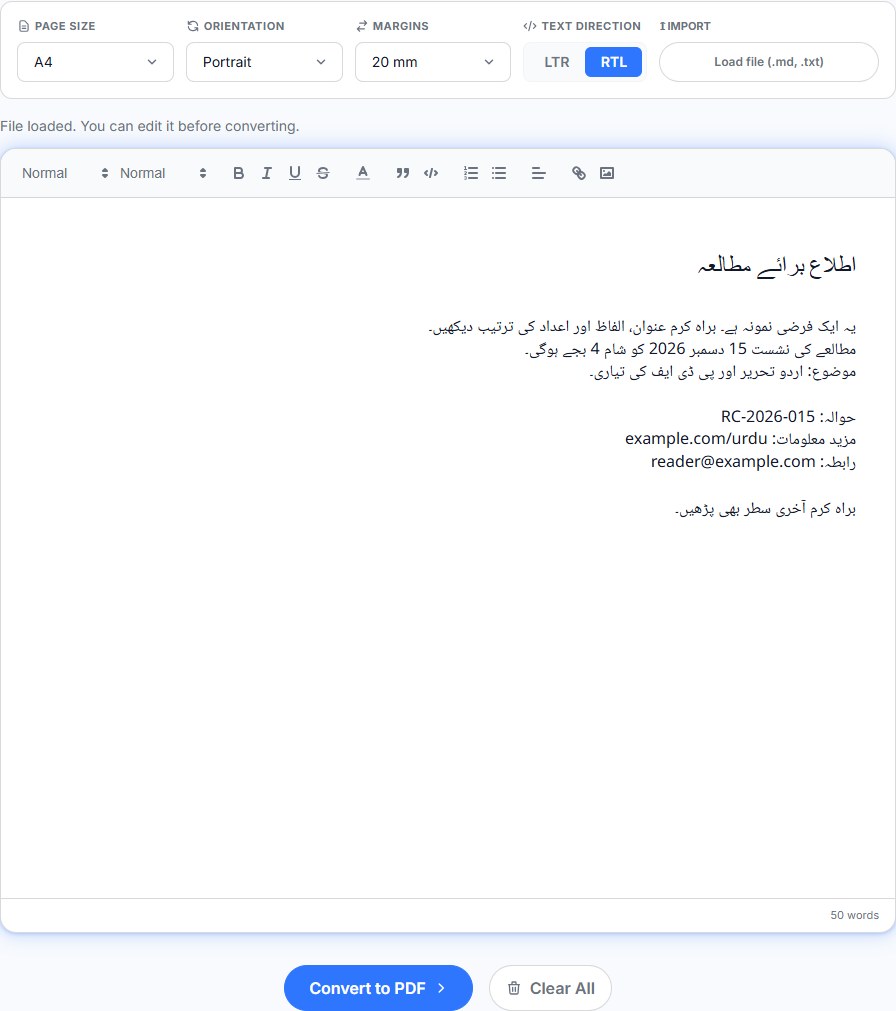
Open Urdu Text to PDF and use Load file (.md, .txt) on desktop or Browse on a phone to select the sample. You can also paste text directly into the editor. Use a UTF-8 text file when saving your own source.
Look at the imported words before changing the layout. If ordinary Urdu has already become Latin symbols or meaningless characters, exporting it will not repair its encoding. A document produced with an older, font-dependent encoding may need conversion to Unicode in the original application first.
A picture of Urdu text is a different input. This editor does not recognize the words in a scanned page. You need editable text before following this workflow; OCR and existing-PDF editing are separate tasks.
For formatted notes, the tool can also import Markdown. Start with plain text while diagnosing a character problem so you can distinguish the words themselves from imported formatting.
2. Check RTL direction and alignment separately
Choose RTL in Text direction. On a phone, open PDF settings to find the direction controls. The Urdu tool starts with RTL selected, but it is still worth checking after loading or pasting content.
Direction establishes the paragraph's reading context. Alignment controls where its lines sit within the available width. Right-aligning a paragraph alone does not establish all the rules needed for mixed Urdu, English, and numbers.
Keep English references in their normal character order. Do not reverse RC-2026-015, reverse an email address, or type words backwards to make one preview look right. The W3C introduction to mixed-direction text explains why left-to-right fragments can appear inside an overall right-to-left paragraph.
For a simple notice, placing the reference, website, and contact details on separate lines makes them easier to verify. If a form requires exact ordering inside a complicated mixed-script line, test that line in the exported PDF before using the layout for the whole document.
3. Format the title without padding it with spaces
Select the first line and choose a heading style from the toolbar. Use paragraph alignment for positioning rather than adding a long row of spaces. Spaces that appear to align a title in the editor may produce a different result in the PDF.
Check the letter shapes in several body words as well as the title. Some gaps are normal: Urdu uses letters that do not join to the following letter. The presence of a gap by itself is not proof that the font is broken.
The current editor chooses its PDF fonts automatically. It does not provide a font-family picker for selecting a specific Nastaliq face. If a publisher or institution requires an exact typeface, compare the downloaded sample with that requirement before preparing a longer document.
Also allow for differences between the browser preview and the exported PDF. A font loaded for the editor is not, by itself, proof of which font the PDF uses. The exported document is the result your reader will receive.
4. Choose paper settings, then export
For the sample, select:
| Setting | Example value |
|---|---|
| Page size | A4 |
| Orientation | Portrait |
| Margins | 20 mm |
| Text direction | RTL |
These are starting settings for a short notice. Choose Letter if that is the recipient's required paper size. Keep enough margin for printing, and avoid reducing the page border to zero merely to fit another line.
Select Convert to PDF and save the download. The current export sends the editor content to RizCraft's server to generate the PDF. It is not a device-only conversion; choose a local workflow if your document must stay entirely on your computer.
5. Check the PDF before sending it
Open the saved file and compare it with the source. For the sample, check:
- The full heading and the dots above and below letters.
- The date and time in the second body line.
- The exact reference
RC-2026-015. - The complete website and email address.
- The final sentence, so you know the export did not stop early.
Then select and copy a short Urdu sentence and the English reference into a plain-text editor. A PDF can look readable while a particular reader extracts mixed-direction text in an unexpected order. Visual correctness and useful copy/paste are separate checks.
On a longer letter or assignment, inspect page transitions and the last page too. Open the document on a phone if that is how the recipient is likely to read it.
Common problems and the next useful check
| Problem | What to check |
|---|---|
| Boxes replace letters | Confirm that the source is readable Unicode text; compare a short export before importing the full document. |
| Words look disconnected | Check several words, not one naturally non-joining letter; compare the browser and PDF results. |
| English references appear in a surprising place | Check RTL direction, punctuation, and the exact exported line. Try a simpler separate reference paragraph. |
| The document does not use the required Nastaliq face | The current tool has automatic font selection. Use a workflow with explicit font control when a particular face is mandatory. |
| Copy/paste changes text order | Test another reader and compare with the source. Keep the original text file rather than treating extracted PDF text as the master copy. |
| A scanned page cannot be edited as text | Obtain editable text or use a suitable OCR workflow first. |
Keep the source text alongside the PDF. That gives you a reliable way to correct a name, date, or reference later without recovering it from a rendered page.
Create your Urdu PDF, then inspect the saved document before sharing it. For documents in other languages, start with the general Text to PDF editor.