


How to Edit a PDF Online Without Uploading It
Sometimes a PDF needs one small correction: a date is wrong, an old logo needs replacing, a form needs a checkbox, or a page contains a detail that must be removed before sharing. The awkward part is that many “PDF editors” only let you place new objects on top of the page. Others send the entire document to a remote server before you can do anything.
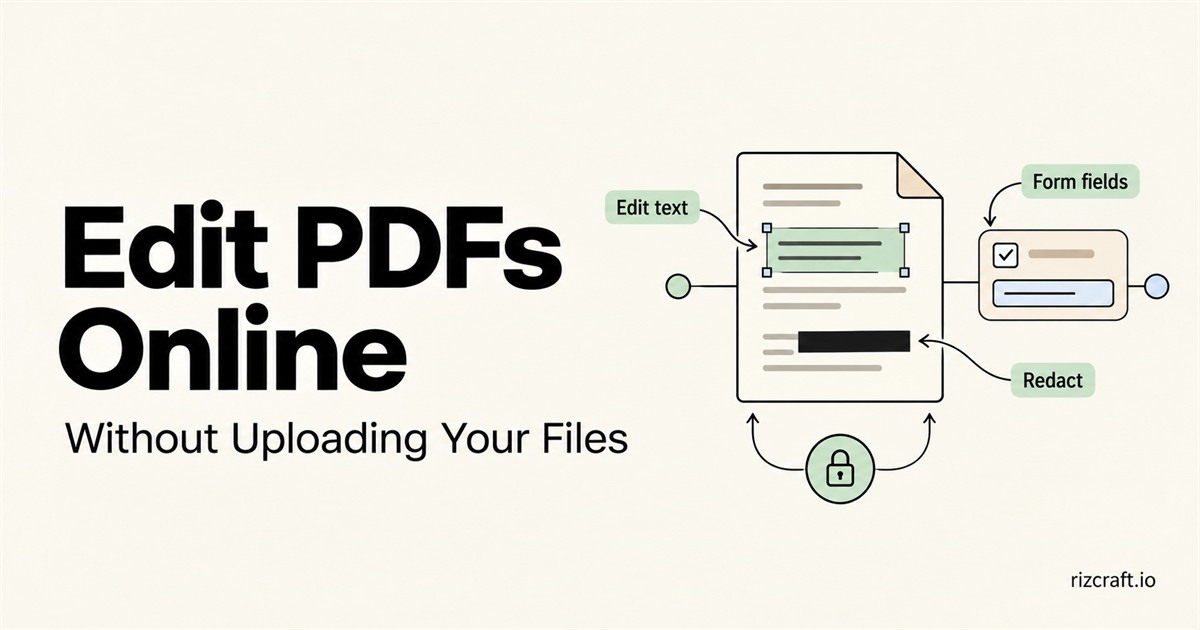
The RizCraft PDF Editor is built for the middle ground: useful document editing in the browser, without uploading the PDF. It can edit supported text and image objects, create fillable form fields, add annotations and signatures, securely redact a region, and reorganize pages. This guide explains what each operation actually changes, where PDF limitations still apply, and what to check before you send the result.
Start by identifying the kind of edit you need
“Edit a PDF” can mean several different things. Choosing the right tool matters because the operations are not interchangeable.
| Goal | Use | What happens in the saved PDF |
|---|---|---|
| Correct a typo or date | Select existing text | A supported text object is rewritten. |
| Add a note or label | Add Text | A new text annotation is placed on the page. |
| Replace a logo or photo | Select the image, then Replace | The selected image object is replaced. |
| Make a blank document fillable | Form | Interactive form widgets are added. |
| Emphasize a passage | Highlight, Underline, Strikeout, or Wavy underline | A text-markup annotation is added. |
| Hide confidential information permanently | Redact | Content in the selected area is removed and covered. |
| Hide something only visually | Rectangle or visual cover | The original content may remain underneath. |
| Sign visibly | Sign | A drawn, typed, or uploaded signature appearance is placed on the page. |
| Remove margins | Crop | The visible page boundary changes; hidden content is not securely erased. |
| Change document order | Page thumbnails | Pages are reordered, rotated, duplicated, inserted, or deleted. |
That distinction between editing, annotating, covering, and redacting is the most important idea in the whole workflow.
1. Open the PDF locally
Open the free online PDF editor and choose a PDF. The file is read and processed in the browser tab; it is not sent to RizCraft for conversion or storage.
Native text, image, and form editing supports files up to 25 MB and 100 pages. A larger document may still open for basic markup, depending on the memory available on your device, but the native editing engine will not start. Password-protected PDFs must be unlocked before the editor can open them.
Keep the original file. Downloading creates an edited copy, so the source remains your easiest way back if you later discover that a page or object should not have changed.
2. Edit existing PDF text
Choose Select, then click a text object. If the PDF stores that content as text, the inspector lets you change the wording and adjust supported properties such as color, size, position, and alignment.
This is different from placing a white rectangle over a sentence and typing a new sentence on top. Editing the real object can keep the result searchable and selectable. It also avoids painting over nearby artwork merely to correct one word.
PDF text is less flexible than text in a word processor. A PDF may store a sentence as several independently positioned fragments, use a subset font that contains only the original characters, convert letters to vector outlines, or contain nothing but a scanned page image. The editor reports when it must use a fallback font or visual replacement instead of silently pretending the edit is native.
Why some text cannot be edited
If clicking visible words selects the whole page image—or nothing useful—the page is probably scanned or the letters were converted to outlines. There is no editable text object in either case.
The editor does not run optical character recognition (OCR). You can still add text, highlights, drawings, signatures, images, and form fields to a scanned document, but changing the words inside the scan requires OCR or editing the source document before recreating the PDF.
After changing text, zoom in and check the baseline, spacing, and line breaks. Then search for the new words in the downloaded PDF. That quick check catches font and encoding limitations that are easy to miss visually.
3. Add, replace, and reposition images
Use Image to add a PNG or JPEG, or select an existing image and choose Replace. Images can be moved, resized, rotated, and given a different opacity.
Replacing an existing object is useful for a logo, headshot, stamp, or diagram because it preserves a cleaner page structure than covering the old image with a white box and adding another one above it. Still, inspect the result at normal zoom and at 200%: a replacement with too few pixels may look acceptable on screen but print softly.
Transparency also deserves a check. A transparent PNG can reveal objects behind it, while a JPEG always has an opaque rectangular background.
4. Turn a static PDF into a fillable form
On a desktop browser, open Form and choose a field type:
- Text field for names, addresses, dates, and free-form answers.
- Checkbox when several independent choices may be selected.
- Radio button when the reader should choose one option from a group.
- Dropdown for a compact list with one selected value.
- List box when several options should stay visible, with optional multi-select.
Drag on the page to set the field size, then use the inspector to set its name, default value, choices, and flags such as Required or Read only. These are real PDF form widgets, not rectangles that merely look like inputs.
Field names matter. Use clear, stable names such as full_name, invoice_date, or delivery_method. Radio buttons that belong to one question should share the intended group name and use distinct export values. For dropdowns and lists, review both the visible labels and saved values.
After downloading, open the file in the PDF reader your recipient is likely to use. Click through every field, test keyboard navigation, and confirm that selected values survive a save-and-reopen cycle. Browser PDF viewers and desktop readers do not always present form styling in exactly the same way.
5. Add annotations without changing the original wording
Annotations are the right choice for review, feedback, grading, or emphasis. The editor supports:
- area highlights and text-aware highlights;
- underline, strikeout, and wavy underline markup;
- freehand drawing;
- typed text notes;
- rectangles, circles, lines, arrows, checkmarks, crosses, and dots.
Use markup when you want the original content to remain visible and recoverable. For a review copy, annotations communicate intent more clearly than rewriting someone else’s sentence. If annotation is your main goal, the PDF Annotator opens the same full workspace with review- and markup-focused guidance.
Before downloading, click each important mark and verify its color, opacity, and placement. A highlight that looks subtle on a bright monitor may become too dark when printed.
6. Redact sensitive information securely
Redaction is not the same as drawing a black rectangle.
A visual cover can hide a name, account number, or address from casual view while leaving the original text or image data in the PDF. Someone may be able to select the text, remove the covering object, inspect the file in another editor, or recover the concealed information in another way.
Use Redact for information that must not survive in the shared file. Drag over the sensitive region, then let the editor remove content in that area and place the redaction mark. Do not use Crop as a privacy shortcut either: cropping changes the visible page boundary, but it is a layout operation rather than a guarantee that out-of-view content has been sanitized.
Verify a redaction in the downloaded PDF:
- Search for the removed words or numbers.
- Try selecting and copying text around the redacted area.
- Open the file in a second PDF reader.
- Confirm that the correct region was removed on every affected page.
For highly sensitive material, also inspect document metadata, attachments, comments, and other pages. Redacting a visible rectangle does not automatically sanitize unrelated information elsewhere in the file.
7. Add a visible signature—and know what it means
The signature tool can create an appearance by drawing with a mouse, touch screen, or pen; typing a name in a signature style; or uploading an image. Place and resize the result like another page object.
This is a visible electronic signature, not a certificate-based digital signature. It does not cryptographically prove the signer’s identity or show whether the file changed afterward. Whether an electronic mark is suitable depends on the document, the parties, and the rules that apply to the transaction.
If the source PDF already contains a certificate-based digital signature, any edit followed by a new save can invalidate it. The editor warns when it detects existing signatures. Preserve the signed original and avoid editing it unless invalidation is expected.
8. Watermark, crop, and organize pages
Use Watermark to add text or an image across selected pages. Choose an opacity that remains readable without obscuring the document. Watermarks added in the current editing session can be removed again before export; artwork that was already flattened into the original page may not be independently removable.
Use Crop to adjust the visible area of the current page. It is useful for trimming scanner borders or excess margins. Because cropping is not secure deletion, use Redact for confidential content.
The thumbnail sidebar handles document structure. You can:
- add another PDF to the workspace;
- insert a blank page;
- drag pages into a new order;
- rotate a sideways page;
- duplicate a page;
- delete pages you do not need.
When combining documents, review page sizes and orientation. A file can be technically valid while still feeling inconsistent if one imported page is Letter size, another is A4, and a third is landscape.
9. Review before downloading
Undo and redo are available during the editing session, but the best quality check happens after export. Download the edited PDF, open that file, and inspect the result rather than trusting only the canvas preview.
Use this checklist:
- Search for edited text and confirm it remains selectable when expected.
- Check fonts, line breaks, image sharpness, and transparency.
- Fill every new form field and save the file once.
- Verify redactions by searching and copying around them.
- Confirm page order, rotation, crop, and page count.
- Look for any unintended RizCraft watermark—there should be none.
- Preserve the original if the source contained a digital signature.
Common questions
Is the PDF uploaded anywhere?
No. Opening, editing, and saving occur in your browser. The file is not uploaded to RizCraft for processing.
Can the editor change every PDF?
No PDF editor can treat every visible word as ordinary word-processor text. Scans, outlined letters, unusual font encodings, encrypted files, malformed PDFs, and complex object structures can limit what is editable. RizCraft exposes those limitations where it can instead of describing every overlay as native editing.
Will the exported PDF contain a RizCraft watermark?
No. The download is unbranded. A watermark appears only if you deliberately add one with the Watermark tool.
Can I merge PDFs while editing?
Yes. Add another PDF, then reorder its pages with the existing document. For a merge-only task, the dedicated PDF Merger is quicker and keeps the workflow focused.
Can I use the editor on a phone?
Basic markup and signing work in the responsive editor, but precise object editing and creation of fillable form fields are best handled on a desktop-sized screen. The Form tool is presented as a desktop workflow.
Edit the document, then verify the result
A capable PDF editor should make the common jobs straightforward without hiding the nature of the operation. Native text editing is different from adding a label. A fillable field is different from a painted rectangle. A signature image is different from a cryptographic signature. Secure redaction is different from a black box.
With those distinctions clear, you can use the RizCraft PDF Editor to make practical changes while keeping the document on your device—and download a clean, unbranded copy when you are done.