


How to Export Python Code to PDF with Line Numbers
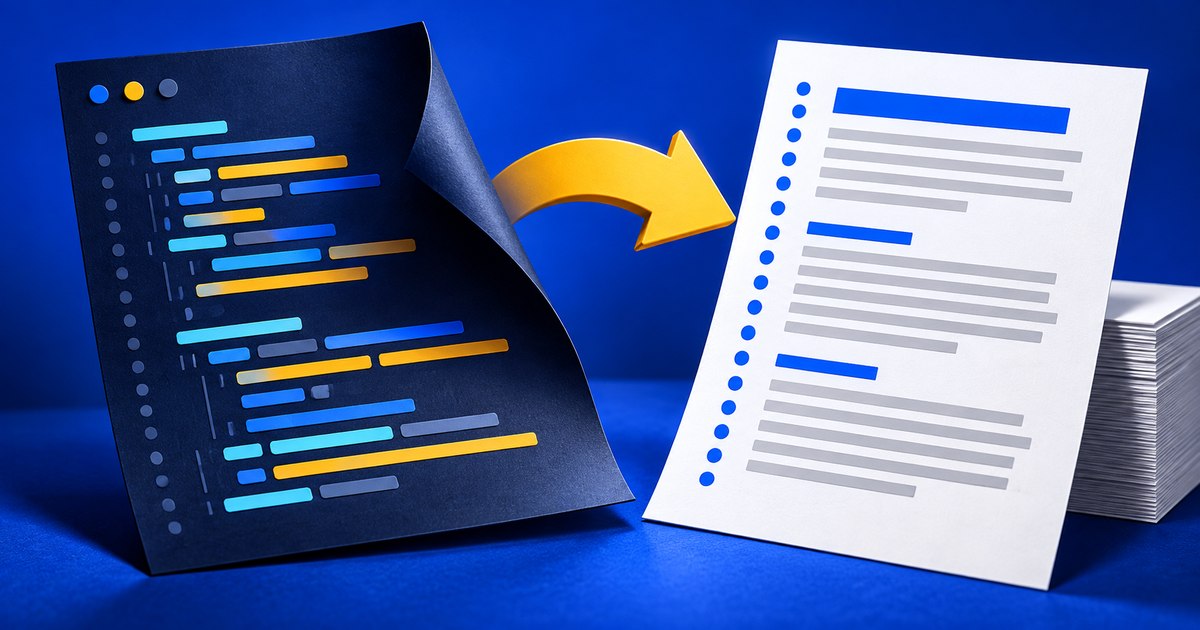
To export Python code to PDF with line numbers, upload your .py file to Code to PDF, confirm Python as the language, enable Show line numbers in PDF, and select Convert to PDF.
The result is a document for reading, printing, or reviewing. It does not execute your program or include its output. Keep the original source file alongside the PDF if someone needs to run or edit the code.
Start with a small Python file
Use a short file for your first export. This example calculates a few totals without external packages, input files, or network access:
def summarize_counts(counts):
    total = sum(counts)
    average = total / len(counts) if counts else 0
    return total, average


daily_counts = [12, 18, 9, 21]
total, average = summarize_counts(daily_counts)

print(f"Total: {total}")
print(f"Average: {average:.1f}")
Save it as reading_counts.py, or download the sample source and rename the downloaded file to reading_counts.py. The download uses a .txt suffix so browsers treat it as text.
The sample's output, if you run it separately with Python, is a total of 60 and an average of 15.0. Those results are not automatically appended to a code listing. Add runtime output to a separate report if your reviewer needs both.
Upload and confirm the language
Open the converter and drop in the file, or select it from your device. The current limits are 200,000 bytes and 2,000 lines. Save the source as UTF-8 text and split very large listings into smaller documents.
Check the language dropdown after upload. The extension helps identify Python, but you can override the highlighting language. Changing this setting changes token colors; it does not translate, format, or compile the code.
The current conversion flow sends the file content to RizCraft's server when you request the PDF. Use a local export method for code that must stay entirely on your device. A browser-based interface does not by itself mean that PDF generation is local.
Choose readable page settings
Start with A4 or Letter, portrait orientation, 15 mm margins, and 11 pt text. These are starting settings, not a requirement. Use the paper size your recipient expects.
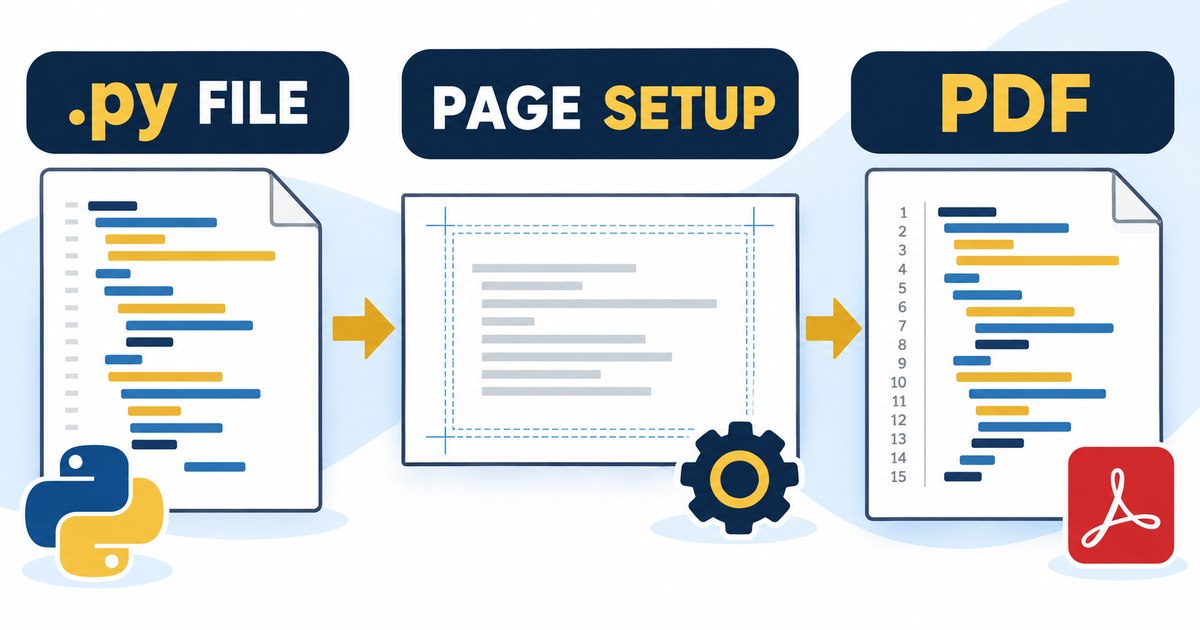
Illustrative export workflow. The PDF is a readable listing, not an executable Python file.
Turn on line numbers when a reviewer will refer to particular lines. Use the color style for screen review or the mono style when color printing is unnecessary.
| Listing type | Start with | Adjust if needed |
|---|---|---|
| Short function or assignment | Portrait, 11 pt, line numbers | Increase font size if there is ample space. |
| Long expressions or URLs | Landscape, 10–11 pt | Shorten lines in the source if readability still suffers. |
| Printed handout | Mono style, normal margins | Check contrast and printer margins. |
| Review with line references | Line numbers enabled | Keep the source version fixed while comments are collected. |
Handle long lines without hiding the code
If a statement wraps awkwardly, change one setting at a time. Try landscape first, then a modest margin reduction. Reduce font size last: a document that fits but is uncomfortable to read has not solved the problem.
You can also reformat the original code before export. Python's implicit line joining allows expressions inside parentheses, brackets, and braces to span lines. For example:
message = (
    f"Processed {total} records "
    f"at an average of {average:.1f} per day."
)
That is a source edit, so review it separately. Do not insert arbitrary line breaks into a quoted string or change indentation merely to make a PDF look nicer.
The converter preserves source-line numbering when a long line wraps visually. A wrapped continuation should not be mistaken for an additional line in the original file.
Check the downloaded PDF
Open the actual download before sending it. Check the first and last lines, indentation inside the function, the line-number gutter, and the right edge of the widest statement. On a multi-page listing, inspect page transitions as well.
Try selecting and copying a small section. Verify that the text you need is present and readable. A visually attractive first page does not prove that the last function or a long comment survived the export.
For a report mixing explanations and code blocks, Markdown to PDF may be a better starting point. Code to PDF is intended for source listings; it does not turn comments into a formatted documentation chapter.
Common questions
Does this run Python or check whether the program works?
No. Syntax coloring is not execution, compilation, or a test. Run and test the program in your normal Python environment.
Can I export files from other languages?
Yes. The converter also supports other source formats, including JavaScript, PHP, C#, and SQL. Confirm the selected language before exporting.
Can I submit the PDF instead of the source file?
Only if the recipient asks for a PDF. Coursework and code reviews may require the original files, a repository link, or both. A PDF cannot replace an executable project.
Export your Python listing, then check the downloaded document at the size your reader will actually use.