



How to Verify File Checksums on Windows with MD5, SHA-1, SHA-256, and SHA-512
A file can have the right name, the expected size, and even the correct icon while still being incomplete or altered. Downloads can be corrupted in transit, storage devices can develop errors, and unofficial mirrors can serve a file that is not the one its publisher released.
A checksum gives you a quick way to check. It is a fixed-length fingerprint calculated from the contents of a file. If your copy produces the same checksum published by the original source, the files are overwhelmingly likely to be identical. If even one byte changes, the resulting checksum changes too.
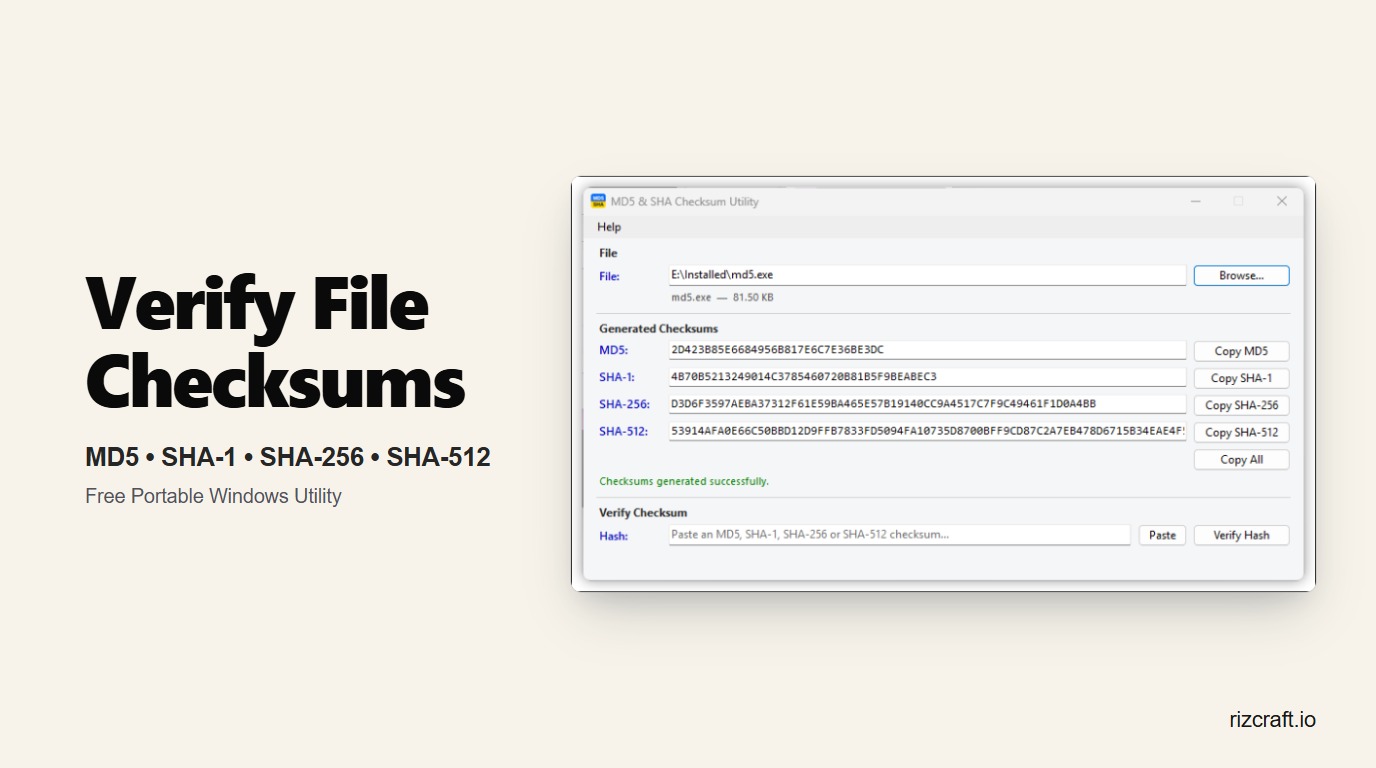
The new MD5 & SHA Checksum Utility from RizCraft makes that comparison simple on Windows. It generates MD5, SHA-1, SHA-256, and SHA-512 values in one pass, verifies pasted checksums automatically, and runs as a portable EXE with nothing to install.
Why verify a downloaded file?
Checksum verification is especially useful when downloading:
- Operating-system ISO images
- Application installers and portable software
- Firmware updates
- Large ZIP, 7z, or TAR archives
- Database exports and backups
- Game files and community modifications
- Files copied between disks, servers, or cloud providers
A matching checksum confirms that the file you received has the same contents as the file used to produce the published value. A mismatch means you should not trust that copy. Delete it, download it again from the official source, and compare once more.
Checksums do not prove that the original publisher is trustworthy. They prove that your copy matches a particular fingerprint. Always obtain the expected checksum from an official website, signed release page, or another source you already trust.
A portable Windows checksum utility
The utility is designed for the common workflow: select a file, wait for its hashes, paste the expected checksum, and see whether it matches.
There is no setup wizard. Download the portable EXE and double-click it to run. It works on 64-bit Windows 10 and Windows 11, does not require administrator access, and includes everything it needs—there is no separate .NET runtime to install.
Your file is processed locally. It is never uploaded to RizCraft or any other service, so the utility also works without an internet connection after download.
How to verify a checksum on Windows
1. Download the utility
Open the MD5 & SHA Checksum Utility page and select Download for Windows. Save the EXE somewhere convenient, such as your Downloads folder or a utilities folder on a USB drive.
Double-click the downloaded EXE to open it. Because it is portable, Windows does not install files elsewhere or add background services.
2. Select the file you want to check
Choose Browse and select your installer, archive, ISO, or other file. You can also drag a file directly onto the utility window.
The app begins calculating four values:
- MD5
- SHA-1
- SHA-256
- SHA-512
All four algorithms are fed during a single read of the file. That matters for large downloads: the app does not need to scan a multi-gigabyte ISO four separate times.
3. Copy the expected checksum
Return to the official download page and find the checksum published for your file. It may appear beside the download button, in a SHA256SUMS file, or on the project's release page.
Copy the complete value. Avoid copying extra labels or punctuation if possible, although uppercase and lowercase hexadecimal letters represent the same checksum.
4. Paste and verify
Paste the expected value into the Verify Checksum field and select Verify Hash. The utility recognizes the algorithm from the checksum length and compares it with the corresponding result.
A successful match means the calculated and expected values are identical. If they do not match:
- Confirm that you selected the correct file and release version.
- Copy the published checksum again to rule out a missing character.
- Download the file again from the official source.
- Do not run or distribute the file until the mismatch is explained.
MD5 vs SHA-1 vs SHA-256 vs SHA-512
Publishers use several checksum formats, so the utility supports the four values people encounter most often.
| Algorithm | Output length | Recommended use |
|---|---|---|
| MD5 | 32 hexadecimal characters | Compatibility with older, non-adversarial file checks |
| SHA-1 | 40 hexadecimal characters | Compatibility with older published checksums |
| SHA-256 | 64 hexadecimal characters | Preferred for modern file-integrity verification |
| SHA-512 | 128 hexadecimal characters | Strong modern verification when provided by the publisher |
MD5 and SHA-1 are cryptographically broken: attackers can deliberately construct collisions under certain conditions. They remain common on older download pages and can still detect accidental corruption, but they should not be your first choice when security matters.
Prefer SHA-256 or SHA-512 when the publisher offers one. If a release page publishes multiple formats, compare the strongest available value rather than relying only on MD5.
Built for large files
A basic checksum program can read an entire file into memory before processing it. That approach is wasteful and may fail with large ISOs, backups, or virtual-machine images.
RizCraft's utility reads data asynchronously in chunks and updates all four hash calculations as the chunks arrive. The entire file is never held in memory at once. A small document and a 20 GB disk image follow the same safe streaming process; the larger file simply takes longer to read from storage.
The interface remains responsive during hashing, reports progress, and cancels the previous operation cleanly if you select another file.
Copy one checksum or all four
Each generated value has its own copy button, which is useful when you need to paste a SHA-256 value into a support ticket, deployment record, or release manifest. Copy All places every generated checksum on the clipboard together for documentation or comparison.
This also makes the tool useful beyond downloads. You can record a hash before moving an archive to external storage, then calculate it again afterward to confirm that the copy is unchanged.
Private by design
Files used for checksum verification may contain private backups, proprietary builds, client deliverables, or internal data. Uploading such files to an online hashing service creates an unnecessary privacy and security risk.
This utility performs all work on your computer. It has:
- No file uploads
- No user account
- No analytics requirement
- No cloud processing
- No internet requirement
- No background service
Close the window and the program stops. Remove the EXE and the utility is gone.
Common checksum questions
Is a checksum the same as antivirus scanning?
No. A checksum only tells you whether a file matches an expected fingerprint. Antivirus software looks for known or suspicious malicious behavior. Use both when appropriate: verify the publisher's checksum, then keep your normal security protections enabled.
Can I calculate a checksum without an expected value?
Yes. You can generate and record checksums for your own files, then compare them later after copying, uploading, restoring, or archiving those files. Verification against a trusted published value is what lets you confirm a third-party download.
Why does hashing a large file take time?
Every byte must be read to calculate an accurate checksum. Speed therefore depends heavily on file size and storage performance. The single-pass design reduces unnecessary disk reads by calculating all four supported algorithms together.
Does the utility modify the selected file?
No. The app opens the file for reading and calculates fingerprints from its contents. It does not edit, rename, move, or upload the file.
Do I need to install the app?
No. It is a self-contained portable Windows EXE. Download it and double-click to run it. Administrator access and a separate .NET installation are not required.
Verify your next download
A checksum comparison takes less effort than troubleshooting a corrupt installer or recovering from an untrusted download. Keep the utility nearby, use SHA-256 or SHA-512 whenever available, and verify important files before opening or distributing them.
Download MD5 & SHA Checksum Utility for Windows →
You can also visit the utility page for features, requirements, and a screenshot of the app.