
The Screenshot Sizes You Actually Need for the App Store, Google Play, and Product Hunt
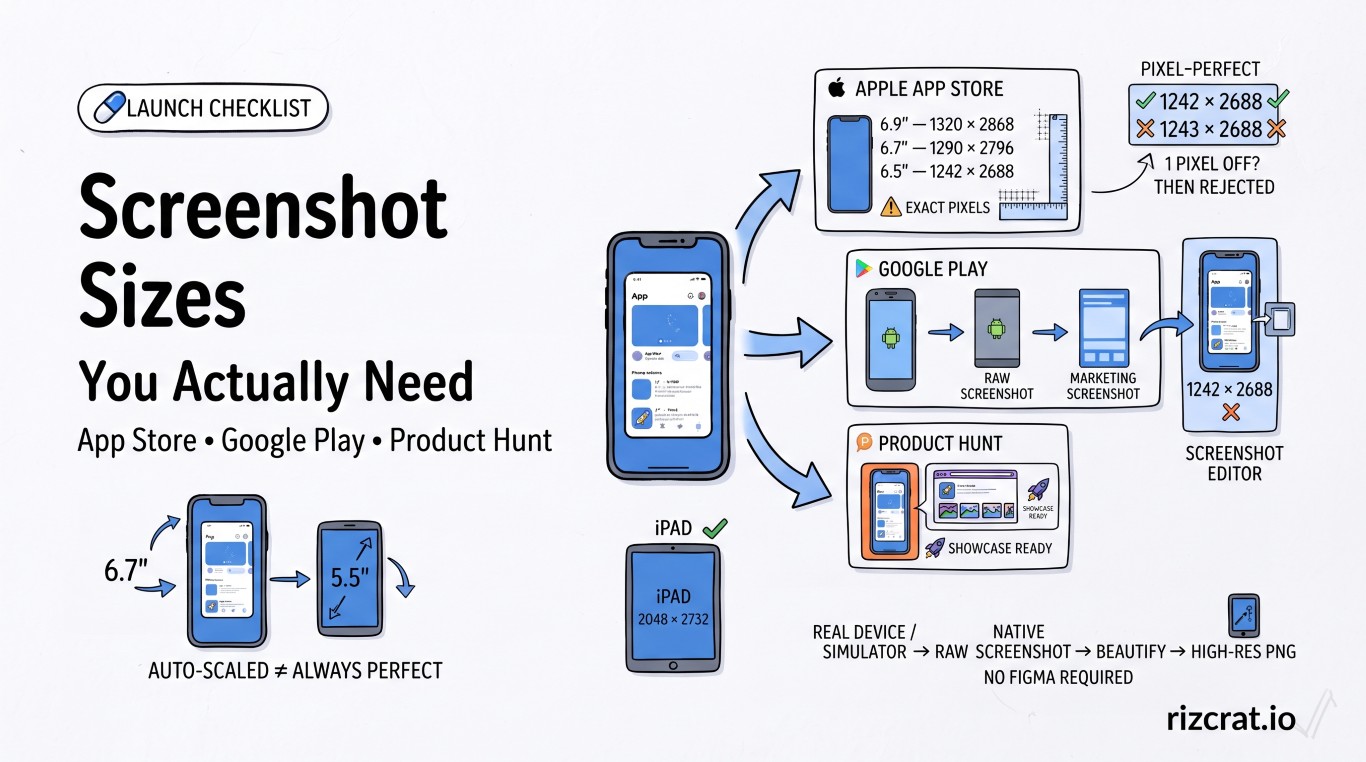
Every launch checklist has "prepare screenshots" as a single line item, like it's one task. It's actually three different spec sheets, and getting even one pixel off gets your build rejected or your gallery image stretched with grey bars. Here's what each platform actually requires in 2026.
Apple App Store
Apple validates screenshot dimensions exactly — a file that's 1243×2688 instead of 1242×2688 gets bounced, no rounding allowed. As of 2026:
| Device class | Required size (portrait) |
|---|---|
| 6.9" (iPhone 16/17 Pro Max) | 1320 × 2868 |
| 6.7" (iPhone 16/15/14 Plus) | 1290 × 2796 |
| 6.5" (iPhone 11 Pro Max, XS Max) | 1242 × 2688 |
| 5.5" (iPhone 8/7 Plus) | 1242 × 2208 |
| 13" iPad Pro | 2064 × 2752 |
| 12.9" iPad Pro | 2048 × 2732 |
You're only required to submit one iPhone size — Apple scales it for the rest — but a design that looks sharp at 6.7" often looks cramped or oversized when auto-scaled to 5.5", so most teams still export two or three sizes by hand. If your app runs on iPad, at least one iPad screenshot set is mandatory, even if the iPhone version looks identical to the phone version.
Google Play
Google Play is more forgiving on exact pixels but still has floors: a minimum of 1080px on the short side, either portrait (9:16, e.g. 1080×1920) or landscape (16:9). Up to 8 screenshots per listing, and unlike Apple, Google doesn't reject you over a few stray pixels — but staying at clean, standard resolutions still looks sharper than whatever your device happened to capture at.
Product Hunt
Two different specs, easy to mix up:
- Thumbnail: square, 240×240px, under 3MB. This is the small image next to your listing in the daily feed.
- Gallery images: 1270×760px (roughly 1.67:1), at least 2 required, up to 8 recommended. Upload something off-ratio and Product Hunt pads it with grey bars, which reads as unfinished.
Product Hunt's own launch guide notes that roughly 70% of products reaching Product of the Day included a first comment from the maker — worth writing in advance, not during launch morning when you're refreshing the ranking every ten minutes.
A workflow that doesn't involve Figma
You don't need a design tool for any of this. Capture your raw screenshot at the device's native resolution first — a simulator or a real device, not a resized desktop screenshot, since upscaling a small capture to hit a target size always looks soft. From there, the Screenshot Editor & Beautifier adds a background, padding, and an optional browser or device-style frame around your raw capture, then exports a high-resolution PNG — built to be Play Store and marketing-ready without a design tool.
One honest limitation: it won't fix a source image that's already the wrong resolution. If your raw capture is 750×1334 and Apple wants 1290×2796, stretching it up in any tool — including this one — introduces blur. Get the source capture right first (correct simulator size, or a device with the right screen), then beautify it.
Try the Screenshot Editor & Beautifier →
Screenshot specs change when Apple ships new device sizes — double-check against App Store Connect before a submission if it's been a few months since your last one.