Paste or upload a screenshot, then crop, blur, annotate, add text and arrows, or create a polished background and frame. Export PNG or JPEG — free, private, and without signup.
Untitled
Your image is ready — continue editing or upload a new one.
Drag & drop your screenshot here
or click to browse · or paste with Ctrl/Cmd+V
PNG, JPG, WEBP, GIF, BMP — private, client-side only
Open 24 built-in tools from your browser sidebar, use quick actions from the right-click menu, and reach every RizCraft tool without hunting through tabs.
Firefox and Edge versions are coming next.•Free to install
Edit, Annotate and Beautify Screenshots Online
Use this online screenshot editor to crop a capture, blur private details, add text, arrows and shapes, or turn a plain image into a polished marketing graphic. Paste from your clipboard or upload an image, edit it directly in your browser, and export a clean PNG or JPEG with no signup or watermark.
How to Edit a Screenshot Online
Paste or upload your screenshot. Use Ctrl/Cmd+V, drag and drop the file, or choose a PNG, JPG, WEBP, GIF or BMP from your device.
Crop, blur or annotate it. Draw arrows, lines, rectangles and circles, add text or freehand notes, and use undo or redo while you work.
Beautify the canvas. Choose a gradient or solid background, set the padding, frame, corner radius, shadow and aspect ratio, then position the screenshot.
Export the finished image. Select PNG or JPEG, adjust the export scale, and download the result or copy it to your clipboard.
See it in action
From raw capture to ready-to-share
Use one focused workspace to explain what matters or give the entire screenshot a presentation-ready finish.
01Annotate & explain
Make the important detail impossible to miss.
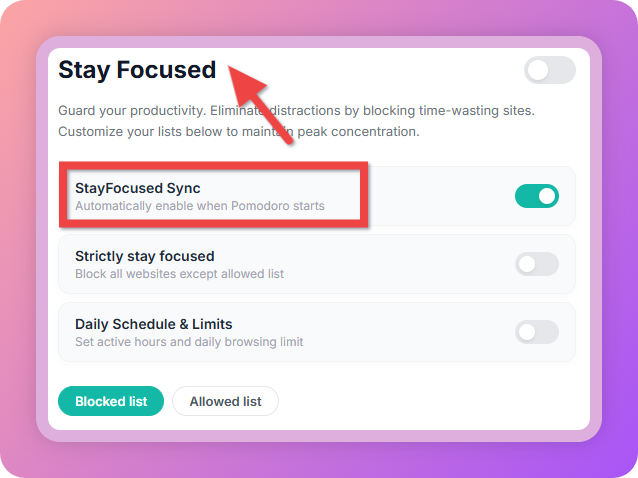
Draw attention to a setting, interface control or bug with precise arrows, outlined shapes and text callouts.
✓ Arrows, shapes and freehand drawing
✓ Crop and blur sensitive details
✓ Ideal for guides and bug reports
An annotation example using a red arrow and rectangle to highlight a product setting.
02Beautify & publish
Turn a plain capture into a polished product visual.
Add a soft gradient, balanced spacing, rounded corners and depth without opening a full design app.
✓ Curated gradients and solid colors
✓ Padding, corner radius and shadows
✓ Ready for stores and social media
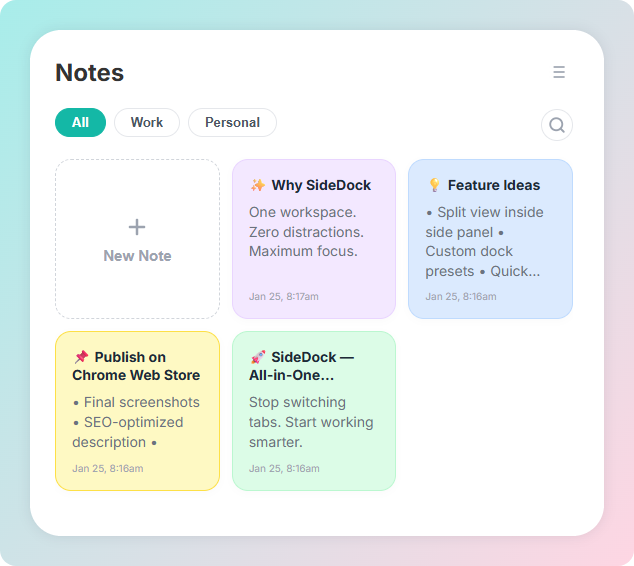
A beautified product screenshot with a gradient canvas, padding, rounded corners and a shadow.
Built for Annotations and Polished Layouts
Call out interface details with arrows, lines, rectangles, circles, freehand drawing and text. Crop the image, obscure sensitive regions, and keep annotations anchored while you adjust the layout. For promotional screenshots, choose curated gradients or solid colors and use square, story or landscape presets for Play Store listings, landing pages, documentation and social media.
Online Screenshot Editor vs. Downloaded Apps
A desktop design app makes sense for complex, multi-layer artwork. For everyday screenshot edits, this browser-based editor removes the setup: there is nothing to install, no account to create and no file to upload to a server. Open the page, paste the screenshot, make the change and export it. Your images never leave your computer because editing, rendering and download preparation run locally in the browser.
Privacy tip: blur and pixelation can still reveal context. For highly sensitive text or identifiers, place an opaque filled shape over the area or remove it before sharing, then inspect the exported image.
Frequently Asked Questions
How secure is this Screenshot Editor & Beautifier?
Very secure. Processing is entirely client-side — your screenshots are never uploaded to our servers. All beautify, annotate, and export steps happen in your browser.
What can I customize on a screenshot?
You can change the background (gradients or solids), padding, inset and inset color, wrapper and screenshot radius, shadow, image position, and aspect ratio presets for social and store formats.
Can I annotate screenshots?
Yes. Use arrows, lines, shapes, freehand draw, and text, plus crop and blur tools. Undo/redo is available while you edit.
Which export formats are supported?
You can export as PNG or JPEG, adjust export scale, download the file, or copy the result to your clipboard when your browser supports it.
Will my exported screenshots have watermarks?
No. Exports are clean — no RizCraft branding or watermarks are added to your images.
Are my settings remembered?
Yes. Beautify preferences (background, padding, radii, and more) are saved in a local cookie so your next session can reopen with the same look — or in reset mode if you left it that way.
You're currently sharing:
Tool Name
Have a suggestion?
Tell us what to improve or which tool to add next.