



Markdown Tables Cut Off in PDF? Fix Width and Layout
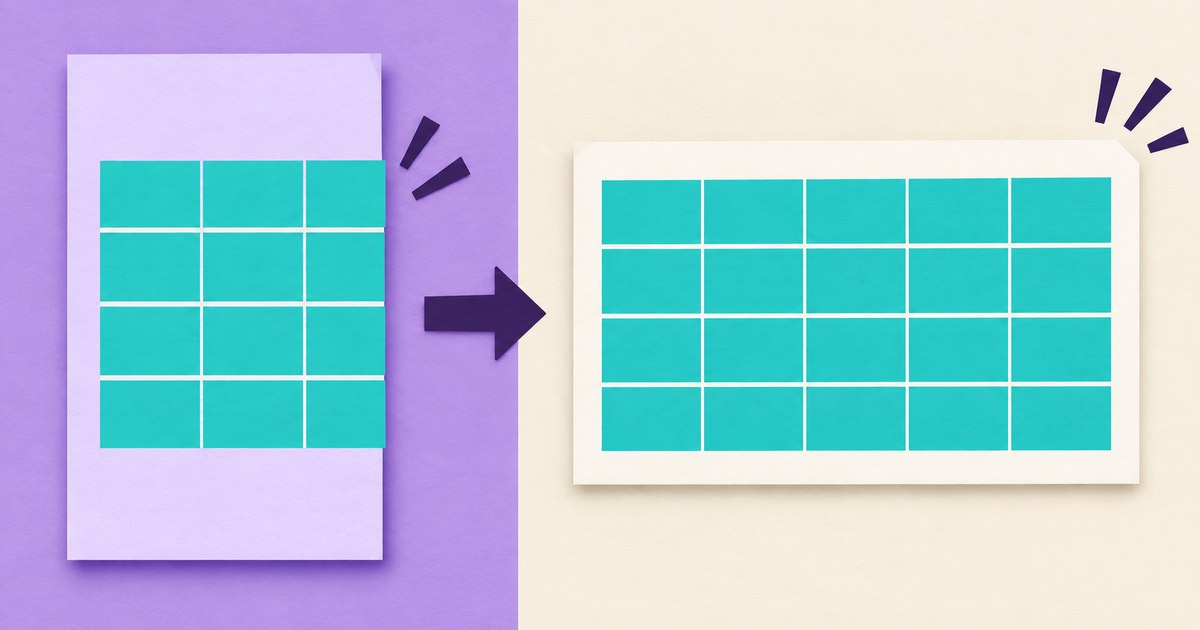
If a Markdown table is cut off in a PDF, first give it more printable width: switch to landscape, reduce margins modestly, and shorten oversized cell values. If it still cannot fit at a readable font size, split the table into smaller tables that share an identifying column.
A Markdown editor can show a table inside a horizontally scrolling area. A PDF has a fixed page boundary. A table that is convenient to scroll on screen may need a different structure when printed.
Separate a syntax problem from a layout problem
Check that your table has a header row, a separator row, and the expected number of cells. If the export shows literal pipe characters instead of a table, inspect the Markdown syntax before changing paper settings.
Use Markdown Preview to check the document structure. A successful browser preview confirms that the Markdown is understood; it does not prove the same table will fit on paper.
This compact practice table should be easy to review:
| Task | Owner | Status | Next action |
| --- | --- | --- | --- |
| Landing page | Maya | Review | Check mobile spacing |
| API guide | Omar | Draft | Add request example |
| Release notes | Sara | Ready | Confirm version number |
Download the sample Markdown. It includes a wider comparison table so you can try different settings on the same input.
Calculate the space you actually have
Paper width and content width are different. Subtract the left and right margins before deciding how much space the table can use.
For A4, portrait paper is 210 mm wide. With 15 mm margins on each side, that leaves 180 mm for content. Landscape is 297 mm wide, leaving 267 mm with the same margins. That is 87 mm more horizontal room without shrinking the type.
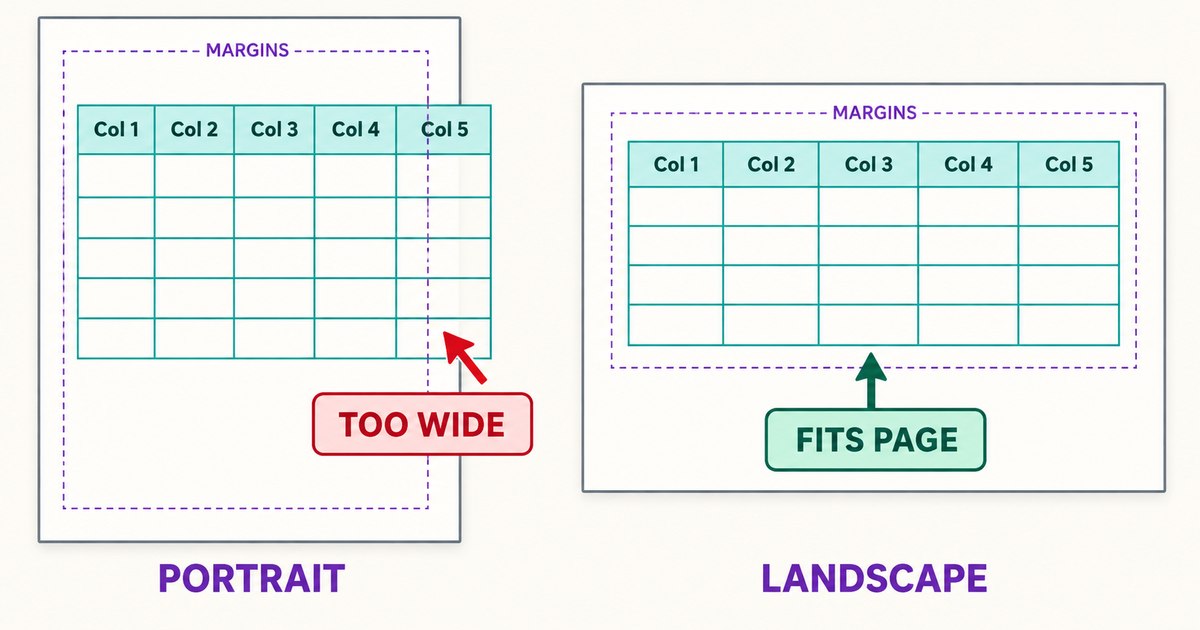
Conceptual comparison of printable width. Actual wrapping depends on the table content and PDF renderer.
Do not assume a fixed number of columns always fits. Four columns of long URLs can require more width than eight columns of short numbers.
Try layout changes in a useful order
Open Markdown to PDF, upload your .md file, and use the page controls to change one variable at a time.
- Switch to landscape. This helps tables whose main problem is horizontal width.
- Reduce margins carefully. Moving from 20 mm to 15 mm gives content more room while retaining a comfortable edge.
- Shorten headings. Move repeated units into headings and replace unnecessary phrases with concise labels.
- Reduce font size slightly. Check the PDF at normal reading size afterward.
- Restructure the table. Split unrelated fields or turn a wide comparison into several smaller tables.
Keep a copy of the original. If every setting changes at once, it is hard to know which adjustment made the output readable.
The current RizCraft export accepts files up to 200,000 bytes and 2,000 lines. Conversion sends document content to the server. Use a local workflow if the document must not leave your device.
Fix long values before shrinking everything
A single long identifier, path, or URL can dominate a table. Replace a display URL with a short descriptive Markdown link where that makes sense, move explanatory prose below the table, or put extensive notes into a separate section.
Do not truncate meaningful values without indicating the change. If a reader needs the full identifier to copy, keep it available outside the compact comparison.
For a wide project table, separate ownership from deployment details:
| Task | Owner | Status |
|---|---|---|
| Landing page | Maya | Review |
| API guide | Omar | Draft |
Then use the same task names in a second table containing environment, release, and next-action fields. The shared key keeps the relationship clear while each table remains readable.
Distinguish width overflow from page breaks
| Problem | Likely direction |
|---|---|
| Rightmost columns disappear | More width, shorter cells, or fewer columns |
| Text becomes extremely small | Avoid relying entirely on automatic scaling |
| A table continues onto another page | Check row readability and repeated context |
| A single cell contains several paragraphs | Move the prose outside the table |
| Literal Markdown appears | Check syntax and supported features |
A tall table spanning pages is not automatically a failed export. The key questions are whether rows remain understandable, headers are available where needed, and no content is missing. If a row itself is taller than a printable page, moving it intact cannot solve the problem.
Different PDF renderers paginate differently. A fix for R Markdown, LaTeX, or a browser print stylesheet may not apply to an online converter. This guide focuses on document structure and the controls available in RizCraft.
Inspect the final PDF
Open the downloaded file and check every table, including later pages. Look for the last column, the last row, overly small text, and awkward line wrapping. Do not rely only on the first page or the browser preview.
RizCraft supports ordinary Markdown tables, headings, lists, and fenced code blocks. Images appear as alternative text; raw HTML, LaTeX math, and Mermaid diagrams remain source text. A different export pipeline is needed if those elements must render as graphics.
Common questions
Can I fix overflow by adding HTML or CSS to the Markdown?
Not with this converter's raw-HTML behavior. Use its layout controls or restructure the content instead.
Should I convert the table into a screenshot?
That can hide the layout problem but makes the table less useful for selecting, searching, or copying data. Prefer readable document text where possible.
What if I need a source-code listing?
Use Code to PDF. For Python specifically, see the line-numbered export guide.
Convert your Markdown file, then inspect the widest table in the actual PDF before sharing it.