



How to Extract Audio from a Video and Save Only the Part You Need
A recording often contains more than you need: a meeting with five minutes of setup, a lecture with a useful explanation in the middle, or a screen recording where you only want the narration. You can save the sound as a separate file and keep just that section.
For a video file, start with Extract Audio from Video. It converts a local recording into MP3, WAV, or OGG and can extract a selected time range. If you already have an audio file, or want to choose the cut by looking at a waveform, use the Audio Trimmer & MP3 Cutter.
Both tools process the selected file in your browser. You do not need to send the recording to RizCraft for processing or create an account.
Quick answer: extract the sound, then keep your clip
- Open Extract Audio from Video and select your MP4, MOV, WebM, AVI, or MKV file.
- Choose MP3 for an everyday audio clip, or WAV if you will edit it further.
- To keep only a section, enter its Start and End positions in seconds. Leave both blank for the full recording.
- Select Extract Audio, listen to the result, and download it.
- For waveform selection, preview playback, or fades, open the downloaded file in Trim Audio.
You can stop after step four if you already know the exact range and the result sounds right.
| What you have | What you need | Where to start |
|---|---|---|
| A video recording | The complete soundtrack | Extract Audio, with the time fields blank |
| A video recording | A known section of its sound | Extract Audio, with Start and End filled in |
| An MP3, WAV, or other audio file | A shorter clip | Audio Trimmer |
| A recording with an awkward opening or ending | A selected clip with fades | Audio Trimmer |
Try a small example before your own recording
Download this 12-second sample video. It contains a solid blue image and a quiet, continuous test tone, with no speech or personal information. Keep your playback volume low for the first listen.
For this example, we will keep the sound from 3 seconds to 9 seconds. The expected clip is 6 seconds long:
Source length: 12 seconds
Start:          3 seconds
End:            9 seconds
Clip length:    9 − 3 = 6 seconds
End means the position in the original video where the clip should stop. It is not the number of seconds you want to save.
1. Choose a video file from your device
Open the audio extractor, then drop the sample video onto the file area or choose it from your device.
The input is a local file, rather than a YouTube link or webpage address. If a recording is stored in a cloud drive, download the actual video first. A shortcut or a sharing-link file does not contain the recording's audio.
The tool supports common video containers, including MP4 and MOV. The codec inside a container also matters: two files ending in .mp4 can contain different video and audio formats. If an unusual recording fails, try exporting a short copy from the app that created it before testing again.
2. Choose MP3, WAV, or OGG
Pick the format based on what happens after extraction.
| Format | Useful for | Tradeoff |
|---|---|---|
| MP3 | Sharing a voice clip or listening in a media player | Lossy compression can change the sound |
| WAV | Taking the clip into another editor | Uncompressed audio produces larger files |
| OGG | Workflows that accept Ogg Vorbis audio | Check compatibility with the receiving app |
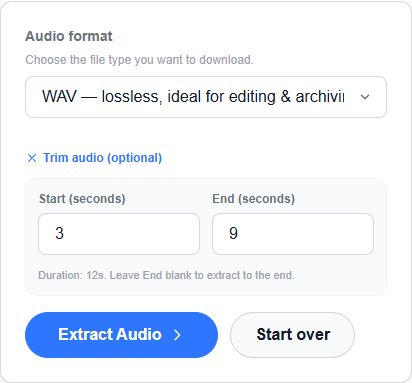
Use WAV for the sample if you want to compare its duration without MP3 encoder padding. Use MP3 when a smaller, widely usable listening copy is the goal.
Saving compressed source audio as WAV does not recover detail the original recording already lost. It also does not preserve the original compressed stream byte for byte: the extractor decodes the source and writes a new audio file. FFmpeg's documentation distinguishes this conversion process from stream copying, which copies encoded packets without decoding and re-encoding them.
If you plan another editing pass, keeping an uncompressed intermediate avoids adding another lossy compression step before the final export.
3. Extract only the section you want
Find Trim audio (optional) beside the format control. For the sample, enter:
- Start (seconds):
3 - End (seconds):
9
Select Extract Audio. When processing finishes, use the audio player to listen, then download the result. It should contain the six-second middle section of the test tone.
For a longer real recording, convert minutes to seconds before entering the range. For example, 1:30 is 90 seconds and 2:15 is 135 seconds. That selection keeps a 45-second clip.
To keep everything after a particular moment, enter Start and leave End blank. To keep the whole recording, leave both fields blank. Choose an end position after the start and within the recording's duration.
Listen to the first and last few seconds before sharing. A numerically correct cut can still start halfway through a word or stop before the speaker finishes.
4. Use the waveform when you need to hear the cut
Exact timestamps work well when you already know where the useful section begins. For speech, it is often easier to see pauses and preview a selection.
Open Audio Trimmer and select the extracted file. If you are following the sample, extract the full 12 seconds first so you can choose the same 3–9-second range in the waveform editor.
- Wait for the waveform to appear.
- Move the start and end handles around the section you want.
- For the example, enter
00:00:03.000as Start and00:00:09.000as End. - Press play to preview the selection.
- Choose an output format and select Trim Audio.

The trimmer currently accepts audio files up to 500 MB, including MP3, WAV, M4A, AAC, OGG, FLAC, and WebM. Device memory and browser decoding support can impose practical limits before that size.
Trimming keeps one continuous section. It does not automatically detect and remove every silent gap inside a conversation. To remove silence at the beginning or end, move the handles to the first and last parts you want to keep.
5. Add a short fade if the clip ends abruptly
The Audio Trimmer offers Fade in and Fade out controls. A short fade can soften a cut through a sustained sound or make a podcast preview end more naturally.
Preview before exporting. A fade that begins too early can make the last word difficult to hear; a fade at the opening can hide the first syllable. For spoken clips, leaving a little breathing room at both ends is often more useful than adding a long fade.
If you need to change bitrate, sample rate, or channel count separately, use the Audio Converter. If you need several clips combined into one file, use Join Audio.
Common extraction and trimming problems
| Problem | What to check |
|---|---|
| The exported clip is silent | Play the original first. Confirm that it contains an audible audio track and that playback is not muted. |
| The wrong section was saved | Check seconds versus minutes, and remember that End is a position in the source recording. |
| The clip is slightly longer than expected | Lossy formats can include encoder delay or padding. Compare with WAV when checking an exact duration. |
| The output is much larger than expected | Check whether you chose WAV. Uncompressed audio can be considerably larger than MP3 or OGG. |
| Processing is slow or the tab runs out of memory | Try a shorter file, close other heavy tabs, or use a desktop editor for a very large recording. |
| The browser cannot read a file | Try a small sample to distinguish a tool-loading problem from a source-file or codec problem. |
| The audio still contains background music | Extraction keeps the audio mix. It does not isolate voices or remove music. |
The first conversion needs to load the audio-processing engine, which is a download even though your selected recording stays local. Browser processing also uses your device's CPU and memory. The ffmpeg.wasm FAQ explains why its performance differs from native FFmpeg; local processing is not a promise that every large file will finish quickly.
Before you send the finished clip
Check the downloaded file in the app where it will be used. Confirm the opening, ending, duration, volume, and format. Keep your original recording so you can make another cut without working from an already compressed export.
For video, extract the audio or save a selected range. For an existing recording, trim it with the waveform editor. Both workflows let you keep the part you need without uploading the recording for processing.