


Favicon Not Showing in Google Search? Check These Settings
Your favicon appears in a browser tab, but Google still shows a generic icon beside your site. Replacing the image repeatedly can make the problem harder to diagnose: browser display and Google Search display involve different checks and different caches.
Start by confirming what your site actually serves. Then check whether the homepage and icon meet Google's requirements. A correct implementation makes the favicon eligible for display; it does not guarantee that Google will show it.
If you need a replacement asset, the Favicon Generator creates a multi-size ICO from a PNG, JPG, SVG, or WebP image. This guide explains how to install it and verify the parts you control.
First, identify where the icon is missing
| Symptom | First check | Useful next step |
|---|---|---|
| No icon in the browser tab | The page's icon link and the image URL | Open the actual icon URL and inspect the page source |
| An old icon in the browser | Whether the served image is current | Compare a private window and check browser or CDN caching |
| Correct icon in the browser, generic icon in Google | Google's homepage and icon requirements | Check crawler access, then allow recrawling and processing |
| Wrong icon on a subdomain | The icon linked by that hostname's homepage | Inspect the subdomain rather than only the main domain |
Use View Page Source to inspect the HTML returned by a public homepage. Search for rel="icon" and read the full href value. A file on your computer or an icon selected in a CMS is not proof that the deployed homepage links to it.
1. Put the icon link in the homepage's head
An ICO at the root of your site can be declared like this:
<head>
  <link rel="icon" href="/favicon.ico">
</head>
The path is an example. If you actually store the file at /assets/icons/favicon.ico, the href must point there instead. A root-relative path beginning with / avoids accidentally resolving the icon under a nested page directory.
Open the resolved image URL directly. Check that it returns the intended icon rather than an HTML error page, a login form, or a redirect to the homepage. The HTTP Headers Checker can help inspect the response status and content type.
After editing a template or CMS setting, deploy it and inspect the live source again. Checking an editor preview establishes what the preview contains, not what Google can fetch from the public homepage.
2. Use a square image with a useful larger size
Google's current guidance requires a square favicon of at least 8×8 pixels and recommends a size larger than 48×48 pixels for its various surfaces. ICO and PNG are among the supported formats; ICO is not a requirement. See Google's favicon documentation for the full rules.
For a multi-size ICO, include small browser sizes and a larger entry. In RizCraft's generator, keep 16, 32, and 48 selected, then add 256. The result is one ICO containing several resolutions, rather than several separately named files.
Start with a square source at least as large as the biggest output you need. Enlarging a tiny image does not recreate missing detail. At tab size, a simple mark with clear contrast is easier to recognize than a full company name or a detailed illustration.
3. Generate and inspect a real ICO
You can try this sample brand mark, a synthetic teal tile with a white star. It contains no existing company's logo.

- Open the Favicon Generator.
- Choose the SVG sample or your own PNG, JPG, SVG, or WebP image.
- Select 16, 32, 48, and 256 pixels.
- Choose Contain to preserve the full artwork, or Cover to crop a rectangular source into a filled square.
- Generate and download the ICO, then install it at the path referenced by your homepage.
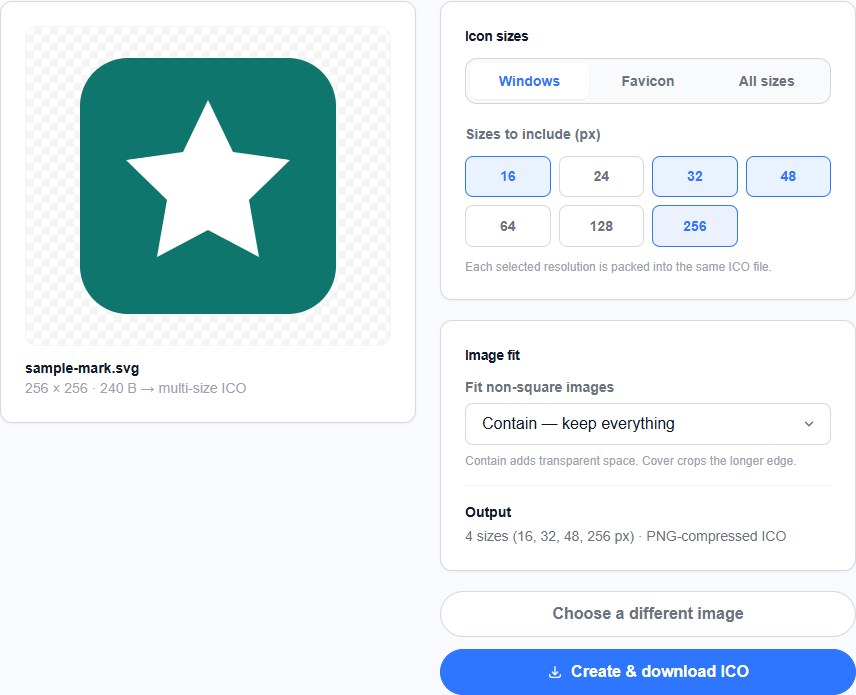
The generator creates one multi-size ICO. It does not create an Apple touch-icon set, a web app manifest, or a PWA icon ZIP. Those are separate assets if your application needs them.
Changing a .png filename to .ico does not convert its contents into an ICO container. Use an actual converter; the PNG to ICO tool is another route when your source is specifically a PNG.
4. Make both the homepage and icon crawlable
A browser's ability to open the icon does not establish that Google's crawlers can fetch it. A robots rule, firewall challenge, authentication requirement, or access-control rule can treat automated requests differently.
Check the public homepage and the exact icon URL. Google documents that Googlebot must be able to crawl the homepage and Googlebot-Image must be able to crawl the favicon file. Keep the icon at a stable URL rather than changing its address repeatedly while waiting for Search to update.
Do not remove unrelated crawler controls just to solve an icon issue. Identify the affected URL and rule. If you are reviewing robots directives, the robots.txt crawler guide explains how user-agent groups work; verify Google Search's crawler requirements separately.
Google associates a favicon with a hostname. A subdomain such as docs.example.com can have its own icon; a directory such as example.com/docs does not establish a separate Search favicon in the same way.
5. Separate browser caching from Google's update cycle
If the public image and HTML are correct but your own tab still shows the old mark, compare another browser or a private window. Check whether a CDN is returning an older response as well.
Google Search has its own recrawling and processing cycle. Clearing your browser cache does not clear Google's stored icon. Request indexing of the homepage through Search Console's URL Inspection tool if you have access, then allow time for Google to process it. Google's guidance says this can take days to weeks, and display remains discretionary even when the requirements are met.
Keep a simple record of the installed icon URL, the date it changed, and the checks you completed. That makes it easier to distinguish a deployment problem from a result that has not updated yet.
What a favicon change can and cannot establish
A readable icon helps people recognize your site's brand in the places that display it. Its presence is not proof of a ranking improvement, and generating a new file does not force Google to display it immediately.
Before making another change, verify four things: the homepage links to the intended file, the file is a valid square icon, the relevant URLs are accessible to crawlers, and the icon URL is stable. Then give the processing cycle time to run.
If your image still needs preparing, create a multi-size favicon. If the asset is already correct, inspect the homepage source and focus on the configuration rather than repeatedly redesigning the icon.