



How to View Page Source on iPhone Without Installing an App

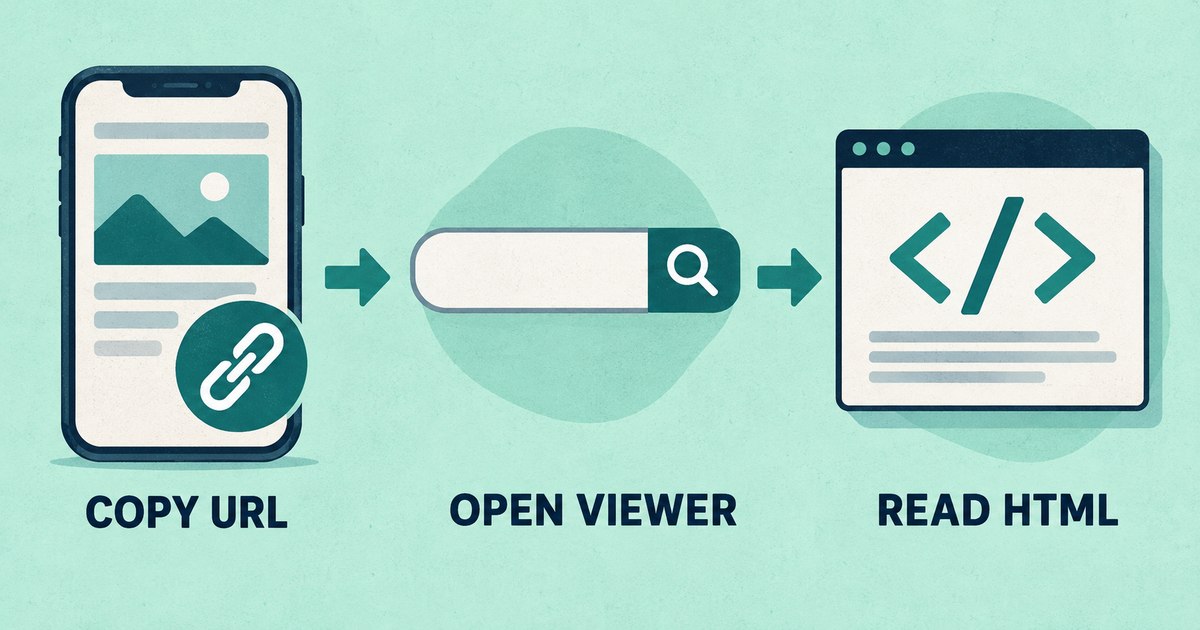
You can read a public webpage's HTML on your iPhone without installing an extension. Copy its address, open View Page Source, paste the URL, and tap View Source. The tool retrieves the HTML returned by the website's server and displays it as source code.
This is useful when someone sends you a page and you need to check its title, description, canonical link, or social metadata from your phone. It does not give you the same view as inspecting a running page with developer tools.
Copy the page address and open the viewer
- Open the public page you want to inspect in your iPhone browser.
- Tap the address bar and copy the complete URL. Copy the page address itself, not the text of a search result.
- Open the HTML source viewer in another tab.
- Paste the URL into the address field and tap View Source.
- Read the highlighted HTML, or use the copy and download controls to examine it in another editor.
The viewer requests the public URL independently. It does not inspect the contents of your other browser tab.
If the output is long, searching a copied or downloaded version can be easier than scrolling through it on a small screen. Start with one question: “Which URL is canonical?” is easier to answer than “What does all this code do?”
Check the title and description
In the page's head, look for a title element and a description meta tag. A simplified example looks like this:
<title>Field Notes — Example Studio</title>
<meta name="description"
      content="Practical notes from the Example Studio team.">
The title element is different from the visible heading inside the page. Both may use similar words, but a page can have a correctly rendered heading while its title still says something generic such as “Home.”
Check for accidental duplicates as well as missing tags. Source inspection tells you what the server sent; it does not guarantee that a search engine will display that exact title or description in its results.
Find the canonical URL and social image
A canonical link identifies the page's preferred URL. Social metadata can supply a title and image for link previews:
<link rel="canonical" href="https://example.com/notes">
<meta property="og:title" content="Field Notes">
<meta property="og:image"
      content="https://example.com/images/notes-cover.jpg">
Look for obvious mismatches: a production page pointing to a staging domain, an old slug in the canonical, or an image address copied from another article. The Open Graph protocol documents the social metadata fields.
Finding an image URL in the source does not prove the image is accessible to a social crawler. Open it separately and check the published page again after changing anything. To prepare replacement tags, use the Open Graph Meta Tag Generator; its preview is a design aid, not a platform cache refresh.
Know which version of the page you are seeing
The source viewer retrieves server HTML before client-side JavaScript modifies the document. A page built mostly in JavaScript may return a short shell containing scripts and a root element. That is a legitimate response even if the page looks full of content in your browser.
| You want to inspect | Appropriate approach |
|---|---|
| Public server HTML and metadata | An online source viewer |
| Elements added after JavaScript runs | A live DOM inspector |
| Your signed-in account page | Developer tools in the authenticated browser |
| Network headers and request failures | Browser Network and Console panels |
The tool does not inherit your cookies, login session, or location. A site can send it a consent screen, challenge page, or different regional response. If the returned title says “Access denied,” you are examining that response rather than the content you expected.
When you need live inspection, Apple's iOS and iPadOS inspection documentation describes using Web Inspector with Safari on a connected Mac. Follow the instructions for your installed versions; settings locations can change.
If source retrieval fails
First confirm that the address is complete and publicly reachable. Try the final URL shown after redirects. Do not paste private links containing password-reset tokens or session credentials into a public URL-fetching service.
If the site requires authentication, rejects automated requests, or only works inside your network, use your own browser's development tools. An online viewer cannot turn a private resource into public HTML or bypass access requirements.
Common questions
Does this edit the website?
No. Viewing or downloading HTML does not change the page on its server.
Will I see the site's backend source code?
No. The response may include HTML and references to public scripts or styles. It does not reveal private PHP, database queries, or other server-side implementation files.
Can this tell me why an iframe is blocked?
HTML alone is insufficient. Embedding restrictions often arrive in HTTP response headers. Use the iframe explanation for that separate diagnostic workflow.
Open View Page Source and start with the specific tag or URL you need to verify.